Whirligig - Remote
A downloadable game for Windows
Whirligig Remote Control
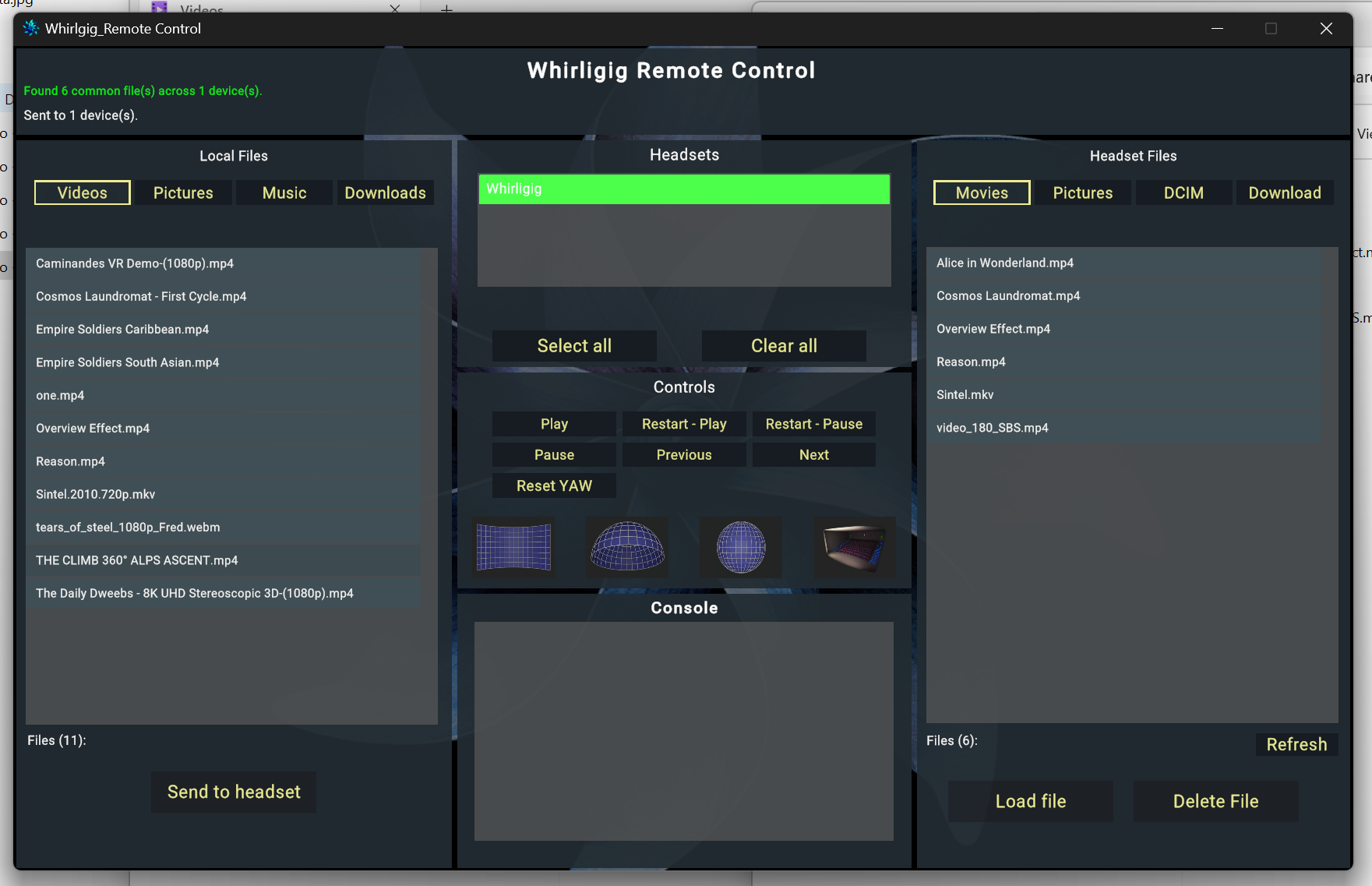
Control Whirligig VR media player across multiple headsets from your PC. Designed for both home users and professional setups like museums, galleries, and exhibitions.
What is it?
A desktop companion app that automatically discovers any VR headsets running Whirligig on your local Wi-Fi network. No cables, no developer mode, no setup — just launch both apps and they find each other.
Features
Device Management
- Auto-discovers headsets on your network — no IP addresses or configuration needed
- Select individual headsets or groups to send commands to specific devices
- Select All / Clear All for quick multi-device management
Playback Control
- Play, pause, stop, and restart media on selected headsets
- Load videos directly from the headset's media folders
- Send custom commands to Whirligig
File Browser
- Browse media files on connected headsets
- Browse local files on your PC (Videos, Pictures, Music, Downloads)
- File list shows only files common to all selected headsets — instantly see what's synced and what's missing
File Transfer
- Send files from your PC to selected headsets over Wi-Fi
- Automatic folder mapping (PC Videos → headset Movies folder, etc.)
- Skips files that already exist on the headset (same name and size)
- Live progress tracking per device
- Transfer status log showing complete, skipped, and failed devices
File Management
- Delete files from headsets remotely
Use Cases
Home User Control Whirligig from your desk without putting the headset on. Browse and load videos, manage your media library, and transfer new content — all from your PC.
Museum / Gallery / Exhibition Manage a fleet of headsets from a single control point. Deploy the same video to 10+ headsets simultaneously, start them all playing at once, and monitor status — all without touching a single headset.
Requirements
- A PC running Windows
- One or more VR headsets running Whirligig (Quest, Pico, or any Android-based headset)
- All devices on the same Wi-Fi network
Setup
- Install Whirligig on your headset(s)
- Download and run the Remote Control app on your PC
- That's it — headsets appear automatically within seconds
Supported Headsets
Works with any headset that runs Whirligig, including:
- Meta Quest 2 / 3 / 3S / Pro
- Pico G3 / Neo 3 / 4
- Any Android-based VR headset
Note
This app requires Whirligig to be installed and running on the headset. Whirligig is available separately.
Download
Click download now to get access to the following files:
Leave a comment
Log in with itch.io to leave a comment.